Table of Contents
Configuring Your Node
Logging In
1. Click the User icon and select “Login”:

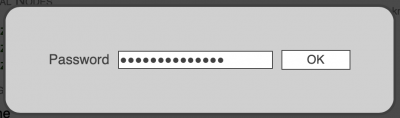
2. Enter your node's admin password and click “OK”:
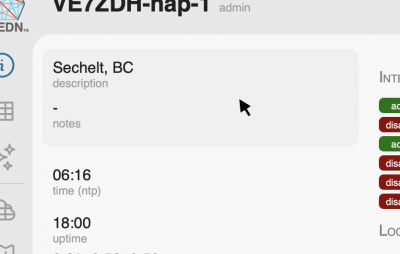
Discover what is editable
3. Move your mouse around the screen and you'll see the background of various areas change to a shaded colour. For example, if you hover over the first section on the top left (see below). Click any of these sections to open an edit dialog.
"Basics" Section
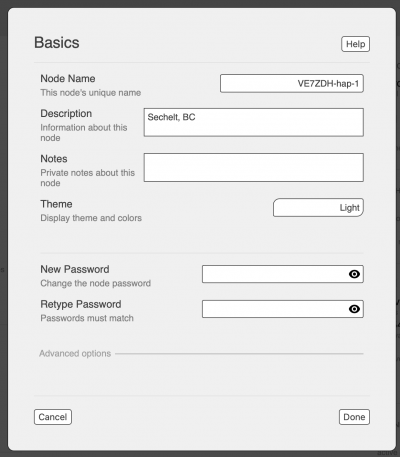
Common settings to change here:
- Description: can contain whatever you want. This is publicly-visible on the mesh network, so put anything here that you want others to know — like your QTH or club affiliation.
- Notes: will only show up when you're logged in to this node.
Name: you can also change your node's name here if you need to, but be aware that you may experience connectivity issues for a day or two after doing this.
"Time" section

Common settings to change here:
- Timezone: Change it to a city in your region, or stick with UTC
- 24-Hour Clock: Change this depending on your preference for adding or subtracting 12 all the time.
Here we also see an example of a “Toggle Switch” — the green or red box that is used to enable or disable various features. When they are green and shifted to the right (as shown in this example), that feature is enabled. When they are red and shifted to the left, that feature is disabled.
"Firmware" section
For upgrading firmware, see Updating the Firmware
"Packages" section

"Network" section
Normally does not need any changes unless you need additional mesh addresses for IP phones and other devices (but it's a good idea to only use what you need — 5 is usually more than enough for most people).
"Internal Services" section
"Local Services" section
"Radios & Antennas" section
"LAN DHCP" section
"Tunnels" section
See Tunneling